Get help with Nemo. Check the troubleshooting guide, browse the FAQ, or reach out directly.
Full docs covering installation, configuration, every setting in the dashboard, camera setup, and Home Assistant integration.
Read the DocsAsk questions, share your setup, and get help from other Nemo users and the development team.
Visit ForumFor purchase issues, license questions, or anything that needs a direct response from the team.
hello@mynemo.caInstall NVIDIA GPU dependencies for your platform, then install and run Nemo
560 with the latest version for your GPU. Reboot after installing.
Quick fixes for the most frequently reported problems
ls /dev/video* to verifychmod +x ./nemoNemo runs on NVIDIA Jetson Orin Nano/NX (~$400) or any laptop. It works with dedicated NVIDIA GPUs (recommended) and Intel integrated graphics, though integrated graphics will have significantly lower FPS. See the expected performance benchmarks to find where your hardware lands. For video input, Nemo accepts any source — USB cameras, IP cameras, RTSP streams, streaming feeds, or local video files.
No. Nemo runs completely offline. All AI processing happens locally on your hardware. No data leaves your device, ever. An internet connection is only needed to download the software initially.
No. The $299 software license is a one-time purchase. It includes 1 year of updates. After the first year, the software continues to work — you just won't receive new versions unless you renew.
Nemo ships as a standalone binary — no Python, no Docker. The only system requirement is NVIDIA GPU drivers and CUDA. See the installation guide above for platform-specific instructions (Ubuntu, Arch, Windows, and Jetson).
Each license covers one device. If you want to run Nemo on multiple boats or devices, you'll need a separate license for each. Contact us at hello@mynemo.ca for multi-license pricing.
Check the hardware compatibility page for expected performance benchmarks across different hardware. If you're not sure about your specs or don't want to worry about it, grab an NVIDIA Jetson Orin Nano (~$400) and order a pre-installed SD card (+$150) — no Linux command line, no configuration, just plug it in and it works.
For an additional $150, we ship an SD card with everything pre-configured for your Jetson. The OS is tuned specifically for the Jetson hardware, Nemo launches automatically on boot, and a WiFi hotspot starts up so you can connect from your phone or any device right away. No Linux terminal, no command line, no driver installs — insert the card, connect a camera and speaker, power on, and you're running. It's as close to plug-and-play as it gets until we release our dedicated hardware unit.
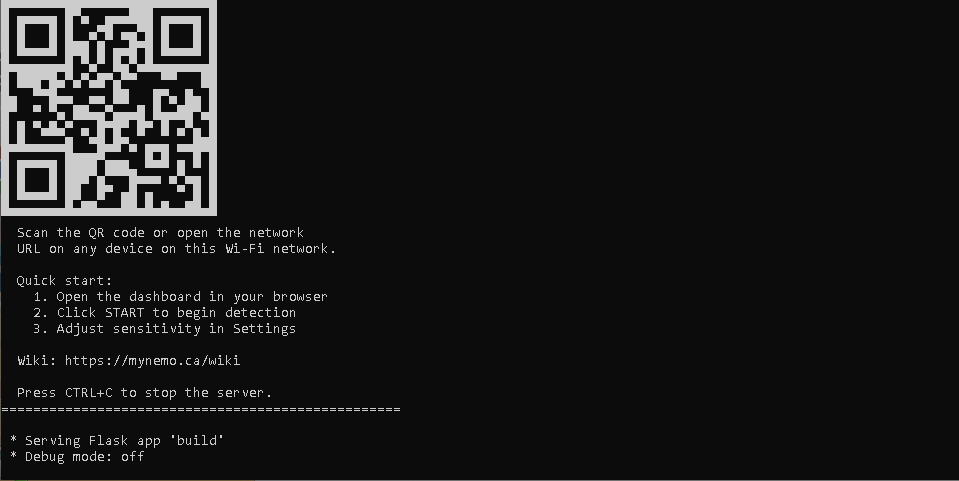
Start a hotspot from your computer or phone, and connect both devices to the same hotspot. Then open your phone's camera app and point it at the QR code displayed in the Nemo Server terminal. A popup will appear and allow you to open the dashboard.
Yes. Nemo outputs the processed detection feed as a network stream. Right-click the video feed in the dashboard and copy the stream URL, then paste it into VLC (Media > Open Network Stream), OBS, or any application that supports network video streams. This is useful for displaying the feed on a dedicated screen, recording it, or integrating with other software.
Nemo accepts virtually any video input: USB webcams, IP cameras (RTSP), HTTP/MJPEG streaming feeds, local video files, CSI cameras (Jetson), and onboard vessel camera systems. If it outputs video, Nemo can process it.
Run the Nemo server. A terminal window will appear showing the startup status and a QR code.
Start a hotspot from your computer or phone, connect both devices to the same network, then open your phone's camera app and point it at the QR code — a popup will appear and allow you to open the dashboard.
For the best FPS on a laptop, close all other applications — especially browsers, which use significant GPU and CPU resources. Then access the Nemo dashboard from your phone or another device instead of running a browser on the same machine.
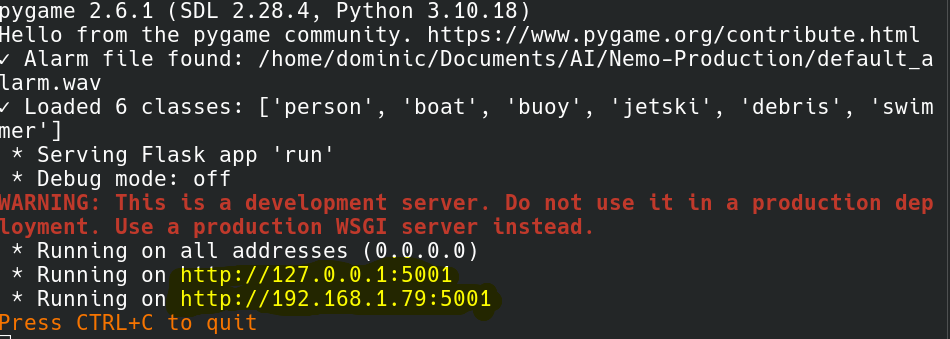
To free up even more resources, go into your laptop's power settings and set "When I close the lid" to "Do nothing", then close the lid. The laptop will keep running Nemo while the screen is off, and you can view the dashboard from any other device on the same network using the local IP address shown in the terminal window.
The ideal setup is to plug a speaker into the device running Nemo, configure your camera and alert settings from your phone or the dashboard, then close everything and let it run in the background. Nemo is designed to be a passive safety layer — it watches the water so you can focus on it. Don't treat it as another screen to stare at instead of looking out the window.
Connect a speaker, set it up, and let Nemo alert you audibly when something is detected. That's the best use case.
Alternatively, you can open the Nemo dashboard in your phone's browser and keep it running in the background. Set your browser to be exempt from battery optimization / power savings on your phone so the page stays active. Nemo will alert you through the browser even when your phone screen is off.
If you're running Nemo on a laptop with no existing network, you can create a mobile hotspot from the laptop itself (Settings > Network > Mobile Hotspot on Windows, or equivalent on Linux). Connect your phone to that hotspot, and then use the local IP address shown in the Nemo terminal window to access the dashboard from your phone's browser.
If you're using a Jetson with the pre-flashed SD card, the Jetson automatically creates a WiFi hotspot called "Nemo" on boot — just connect to it from any device and open the dashboard address shown in the terminal.